n8n Workflows
- Automate inventory management in Airtable with n8n purchase orders (JSON Direct Link | n8n template link)
Resources
Video
Video Summary
Building a Robust Inventory Management System in Airtable
Using Airtable for inventory management can be a tricky task. While many solutions look good on paper, they can quickly break down in real-world scenarios. This guide will walk you through the most common mistakes, essential best practices, and a complete, automated system to help you build a reliable inventory management tool.
We will cover whether Airtable is the right choice for you and demonstrate a system that uses n8n for automation, even sending purchase orders to suppliers automatically.

4 Key Best Practices and Common Mistakes
Before diving into the build, it’s crucial to understand four fundamental principles that will determine the success of your Airtable inventory system.
Tip 1: Tracking Current Stock Value is Not Enough
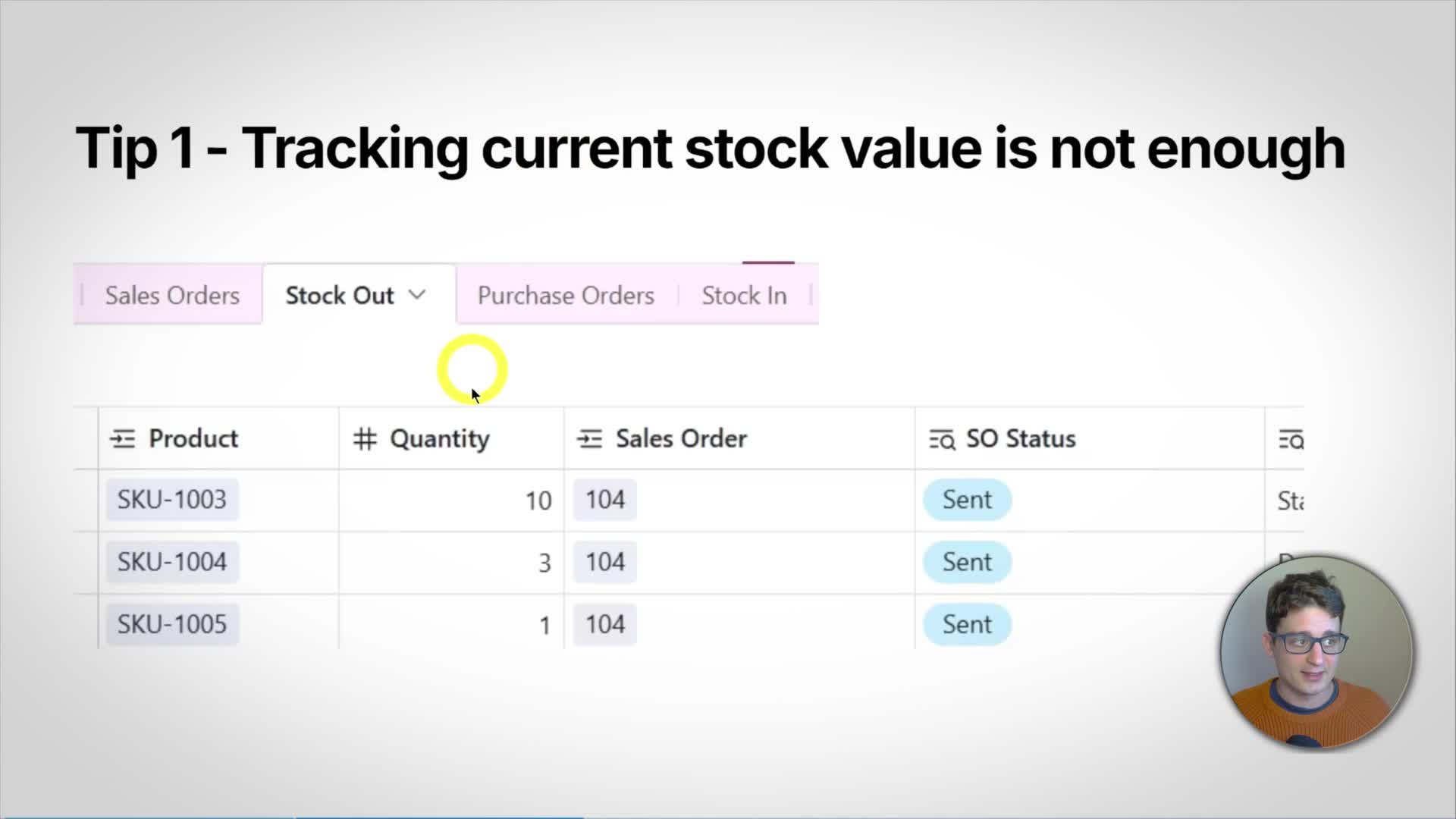
A common mistake is to only track the current quantity of a product in a single field. This approach is fragile. If a discrepancy occurs, it’s nearly impossible to trace the source of the error. You also lose the ability to forecast future stock levels.
Instead, you need a robust, movement-focused ledger. This means creating separate tables to record every ‘Stock In’ and ‘Stock Out’ operation. By tracking each transaction, you create an auditable history that allows you to calculate the current stock accurately and troubleshoot any issues that arise.
Tip 2: Be Aware of Airtable Record Limits
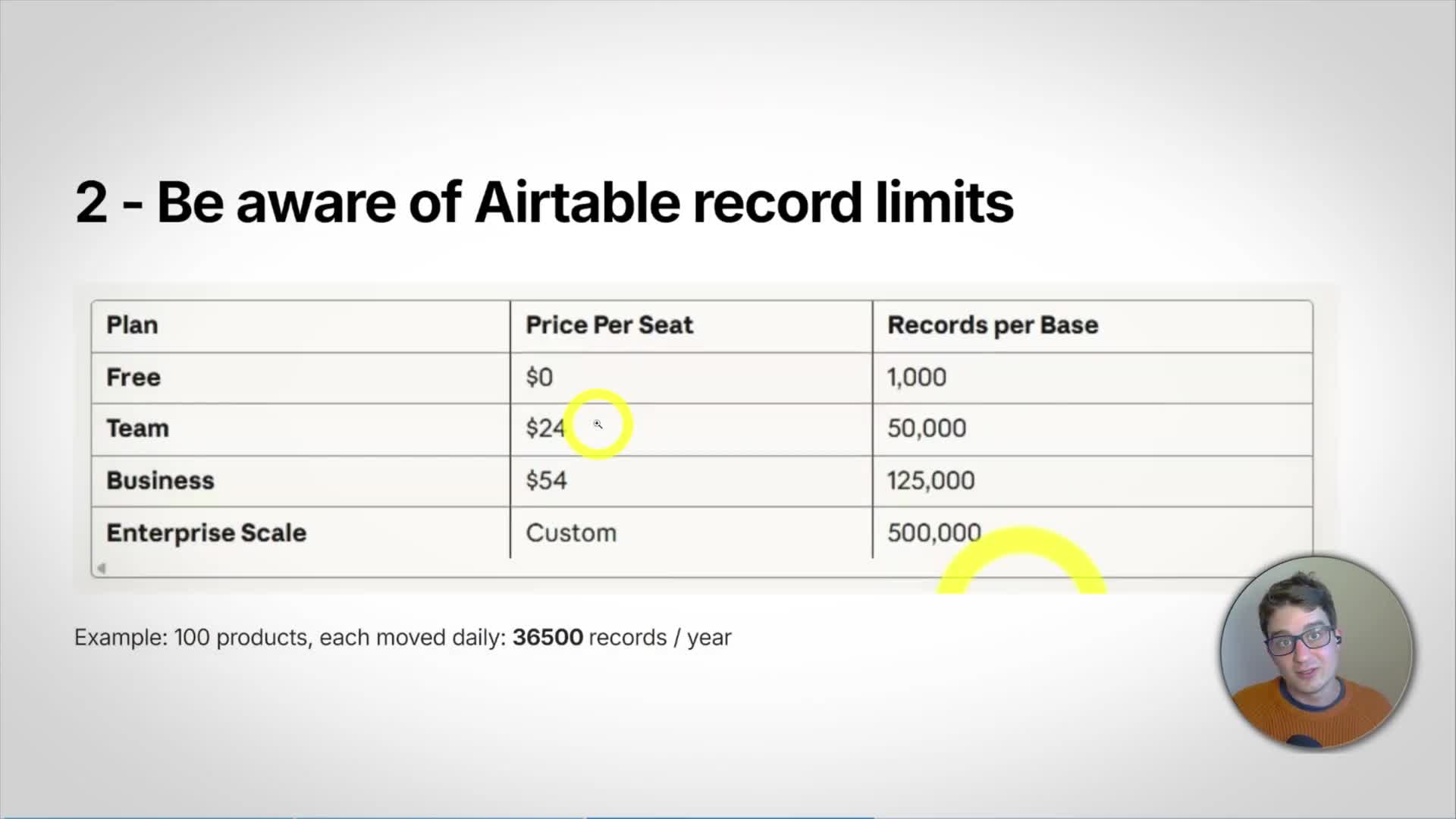
Since we are tracking every stock movement as a separate record, the number of records in your base can grow quickly. It’s essential to be aware of Airtable’s record limits, which vary by plan. For example, the Team plan allows 50,000 records per base.
If you have 100 products and each one has a stock movement daily (either sold or purchased), you will generate over 36,500 records in a single year. This can quickly exhaust your plan’s limits. Plan for this by considering higher-tier plans or implementing an archival strategy, such as creating a new base each year and rolling over the final stock counts.
Tip 3: Consider Alternatives
Airtable is an excellent choice for inventory management primarily if you already use it for other parts of your business, like product data or order management. The ability to seamlessly connect these different bases is a major strength.
However, if you’re looking for a standalone inventory management system, there might be better, more cost-effective solutions available that are purpose-built for this task. The limitations on records and the per-seat pricing can make Airtable less ideal if inventory is your only use case.
Tip 4: Use Interfaces
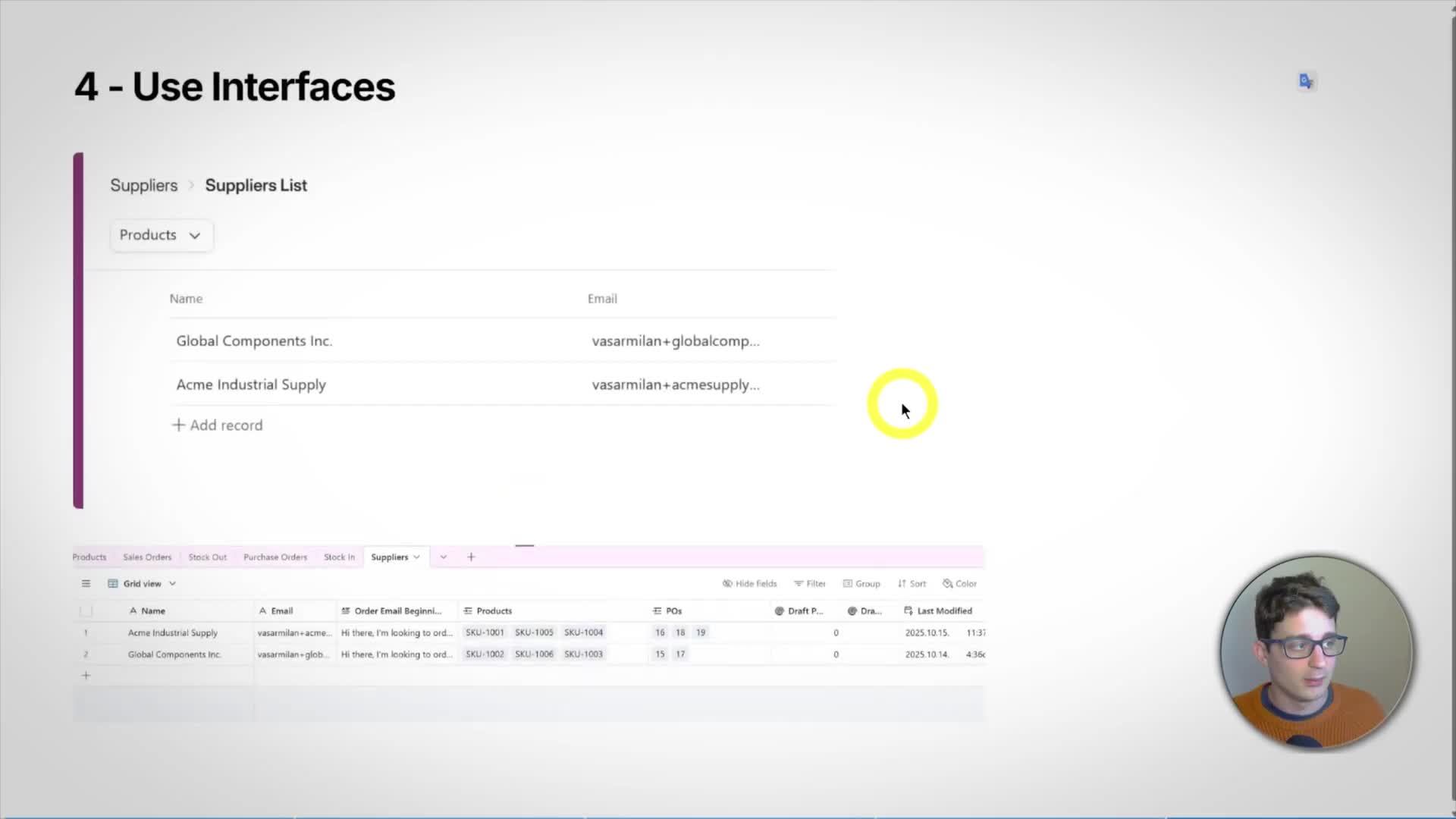
To prevent accidental errors and simplify daily operations, always use Airtable Interfaces as the primary way for your team to interact with the data. The backend database structure can be complex and delicate; a wrong entry in a data table could break your formulas and automations.
Interfaces allow you to create streamlined, user-friendly dashboards. You can control exactly which fields are visible and which are editable, guiding users through the correct process and protecting the integrity of your backend logic. This is crucial for a system as complex as inventory management.
System Walkthrough: Airtable and n8n
Airtable Base Structure
The system is built on several interconnected tables:
Products: The master list of all your products, including SKU, name, supplier, reorder threshold, and refill quantity. The ‘Current Qty’ is a formula-calculated field and should not be edited directly.
Suppliers: Contains supplier names and contact emails.
Sales Orders & Stock Out: Sales Orders are the main orders, while the Stock Out table acts as a ledger for each individual item sold from that order. This allows us to track every movement.
Purchase Orders & Stock In: Similarly, Purchase Orders (POs) are created to reorder stock. The Stock In table logs each item received from a PO, completing the movement ledger.
The n8n Automation Workflow
The automation, built in n8n, handles the heavy lifting:
1. Create Draft POs: The workflow ensures there’s always an open ‘Draft’ PO for each supplier.
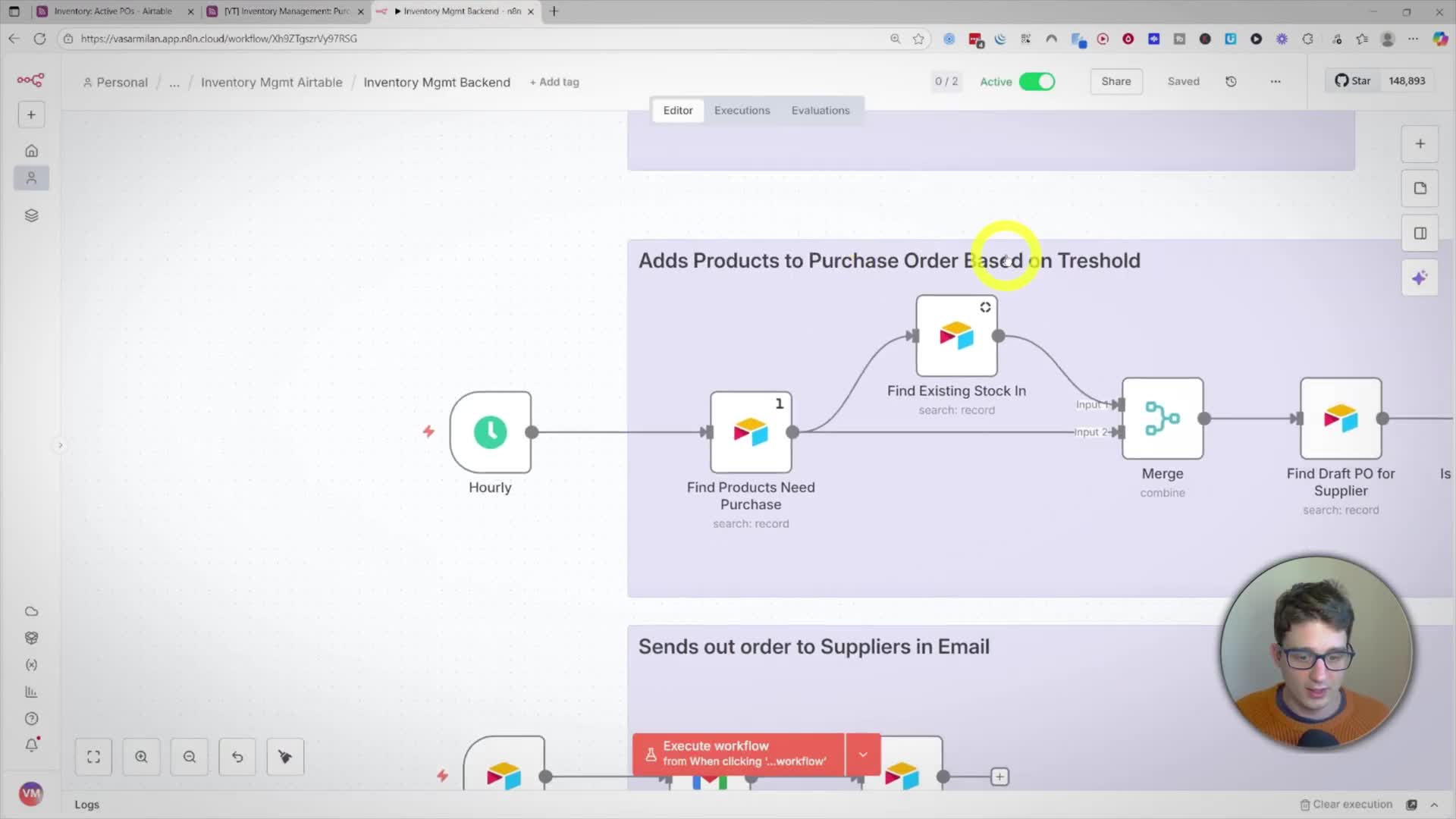
2. Add Products to PO: On a schedule (e.g., hourly), the workflow checks for any products whose forecasted stock has dropped below the reorder threshold. It then adds these products to the corresponding supplier’s draft PO.
3. Send Orders to Suppliers: When a user updates a PO status in Airtable to ‘Needs Email’, another workflow triggers. It sends a formatted email to the supplier with all the order lines and updates the PO status to ‘Ordered’.
Customizing the System for Your Needs
This template is a starting point. A key area for customization is how sales orders are created. Instead of manual entry, you can automate this by connecting to your sales platform. For example, you can use an n8n trigger for Shopify or WooCommerce to automatically create new sales orders in your Airtable base whenever a new order is placed in your e-commerce store. This creates a fully integrated and automated flow from sale to stock adjustment.